
Inhale Studio helps you create and run guided breathing sessions with your own pacing, visuals, and music.
What you can do
- Create multiple breathing videos
- Edit timing, visuals, colors, and music for each video
- Duplicate or delete videos
- Switch the app language between English and Hebrew
- Share the video parameters (in free mode using built in assets only)
Getting Started
Create Your First Session
To begin, tap the + button on the Home screen. This opens the Session Settings where you can define your video:
- Name your session: Give your video a title (e.g., “Morning Calm” or “Deep Sleep”).
- Set the rhythm: Choose your durations for Inhale, Exhale, and optional Hold phases.
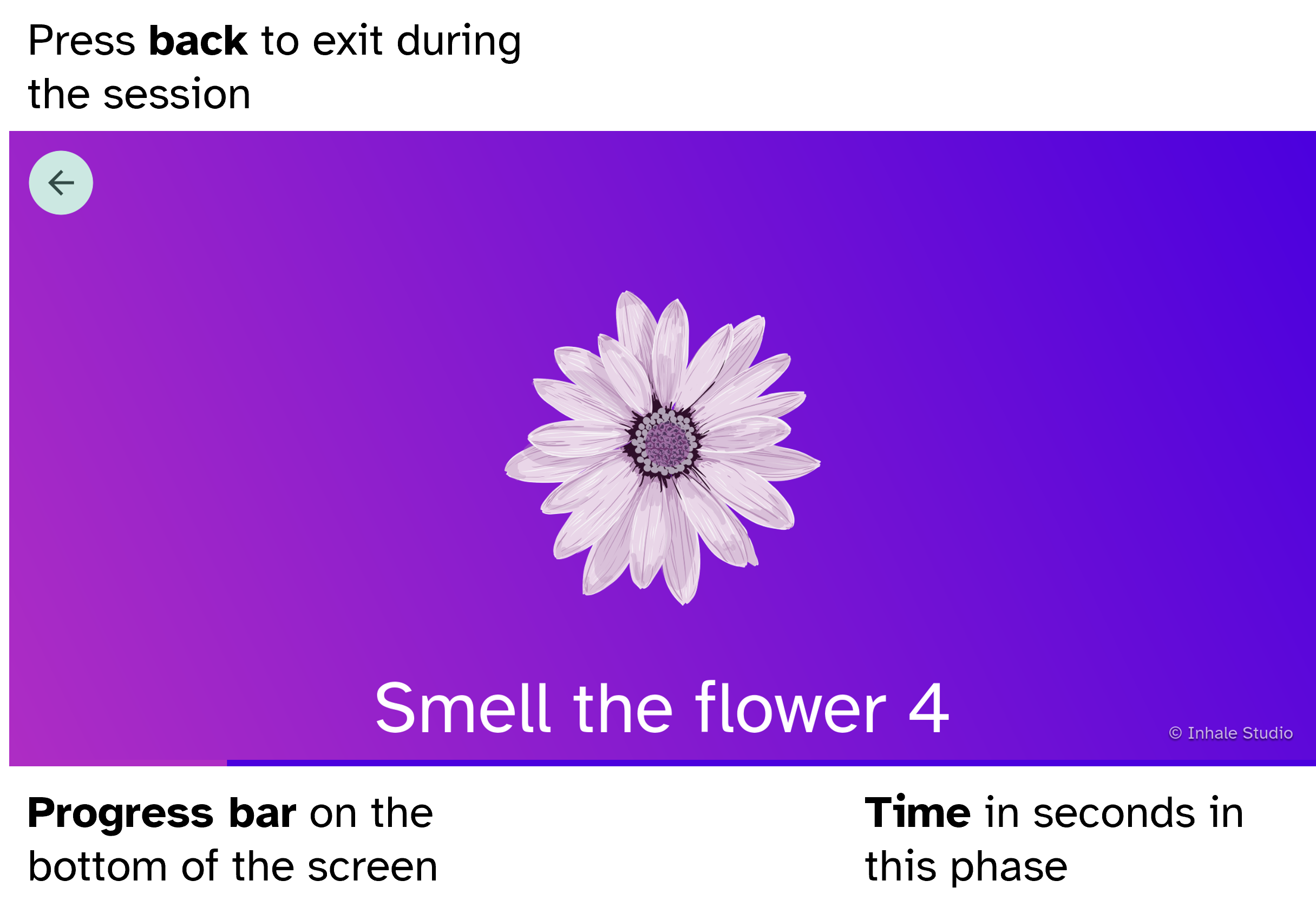
- Pick a style: Choose between Flower/Candle cues (“Smell the flower”) or Neutral cues (“Inhale”).
- Save: Tap Save and Start to store your settings and begin breathing.
Running a Session
Once you have created a session, it will appear as a card on your Home screen.
- Start: Tap any session card to begin.
- Intro: The app will display a brief intro message to help you prepare.
- Breathe: Follow the on-screen animation and countdown timer. The progress bar at the bottom shows how much of the session is remaining.
- Stop: If you need to end early, simply use your device’s Back button to return to the Home screen.
Note: If the app doesn’t start after you hit save, look for red error messages; the screen will automatically scroll to any invalid fields.
Customizing Your Experience
One of the best parts of Inhale Studio is making each session feel like your own. You can adjust the rhythm, visuals, and sound to match your goals.
Adjusting the Rhythm
You have full control over the timing of your breathing cycles:
- Inhale & Exhale: Set the duration for breathing in and out, up to 120 seconds each.
- Hold Phases: Add a “Hold after inhale” or “Hold after exhale” for advanced techniques like Box Breathing.
- Cycles: Choose how many times to repeat the pattern, up to a maximum of 60 cycles.
- Intro: Set a preparation duration to get settled before the first inhale.
Personalizing Visuals
You can change how the app looks during your session to create the right atmosphere:
- Backgrounds: Choose a colorful gradient pair, a professional image from the built-in library, or upload your own photo from your device.
- Display Modes: Use Fit to keep the original photo shape or Stretch to fill the entire screen.
- Breathing Icons: Select separate images for the inhale and exhale phases. You can use the built-in library or upload your own PNG or GIF files for a custom animation.
Personalizing Music
Adding sound can help you maintain focus and relax:
- Library Tracks: Choose from a selection of built-in ambient tracks.
- Upload Your Own: Use your own audio files. The app supports MP3, WAV, M4A, AAC, and OGG formats.
- Volume Control: Fine-tune the background music volume so it complements rather than distracts from your practice.
Choosing Your Cue Style
- Flower/Candle: prompts you to “smell the flower” and “blow out the candle”.
- Neutral: only “Inhale” and “Exhale” text.
Managing Your Library
As you create more sessions for different needs you can easily manage them from the home screen. Free users are limited to 7 videos.
Editing & Refining
To make changes to a session you’ve already created:
- Locate the session: Find the session card on the home screen.
- Open settings: Press the Edit button on that card.
- Update and Save: Adjust your timings, visuals, or music, then tap Save to update your practice without starting the session.
Organizing Your Sessions
- Duplicate: If you want to create a variation of a session (for example, the same visuals but a longer duration), use the Duplicate button to copy the parameters.
- Delete: To remove a session you no longer use, tap the Delete button on the card.
- Share: You can share your specific video parameters with others, provided you are using the built-in assets. Custom assets will be replaced with default built in assets. To Share, press the Share button. A preview of the sharing card will be shown. The card has your background and images. When pressing share, you can send this card via email or WhatsApp with an import link. The card also has a QR code with the same import link. Click the link or scan the QR code to import.
Pro mode
In pro mode, you can create unlimited videos. In addition, you can access pro-only assets and asset packs. Coming soon.
App Settings & Info
Privacy Policy
Inhale Studio does not collect any personal health metrics and only uses anonymous technical data (via Sentry and Mixpanel) to improve the animation engine.
View the full privacy policy here.
Language and Localization
Inhale Studio is designed to be accessible in multiple languages:
- English
- Hebrew
Open the Menu and select Language to switch between English and Hebrew.
Credits and Support
- About: Access the About page from the menu to find the current app version, image credits (including Pixabay creator pages), contact links, and licenses.
Troubleshooting & Tips
- Save Errors: If a session won’t save, the app will highlight the error and scroll to the field that needs fixing (e.g., a duration over 120 seconds).
- Missing Media: If an image or music file doesn’t load, double-check that the file format is supported (like MP3 or PNG) or that the file hasn’t been moved on your device.